Traditional phone lines are expensive to maintain, difficult to scale, and built for a way of working that most Dubai businesses have already moved past.
Legacy PBX hardware breaks down, requires specialised maintenance, and simply cannot support the flexibility modern teams expect. VoIP (Voice over Internet Protocol) solves this by running calls over your existing internet connection.
No separate telephone infrastructure, no copper lines, and no rigid desk-by-desk wiring. Yealink, a global IP communications brand present in over 100 countries, is the device of choice for businesses in the UAE, making this shift.
This guide covers what you actually need, how the setup works step by step, and where to get the right Yealink distributor in Dubai.
What Is VoIP and Why Are Dubai Businesses Switching in 2026?
At its core, VoIP converts voice into data packets and sends them across an IP network. Your calls travel the same path as your emails and cloud applications. There is no dedicated phone line involved.
For Dubai businesses, the reasons to switch are practical, not theoretical:
- International call costs drop sharply – A daily concern for any business operating across time zones in the UAE’s multinational environment
- New extensions take minutes, not days – It is a configuration change, not a wiring job
- Remote and branch staff connect to the same system – Whether they are in Business Bay, JLT, or working from Abu Dhabi
- Yealink devices integrate directly– They integrate Microsoft Teams, Zoom Phone, and most SIP-based IP PBX platforms
Dubai’s business structure, multi-branch, internationally connected, and increasingly hybrid, is exactly the environment VoIP was designed for.
Three Things You Need Before Buying a VoIP System
Most businesses skip this step and end up with the wrong devices. Get these three things sorted first before finding the right Yealink distributor in Dubai.
- A SIP Trunk or Hosted PBX -This connects your internal system to the public phone network. Hosted PBX options are also available through several regional providers. With these, call routing is managed in the cloud, and you only need to supply the end devices.
- A Clean, Stable Internet Connection– VoIP is unforgiving of poor network quality. Jitter and packet loss translate directly to broken, choppy audio. Business-grade fiber with sufficient upload bandwidth to support your expected concurrent call volume is the baseline.
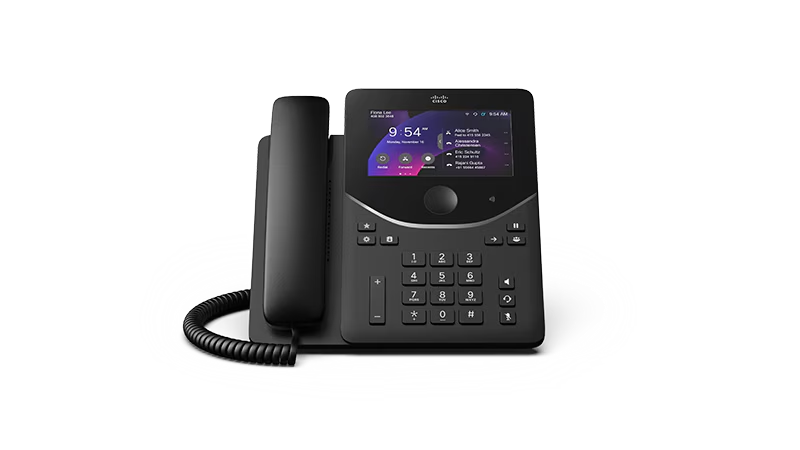
- The Right End Devices- Yealink covers every use case, desk phones, wireless handsets, conference phones, video phones, and Microsoft Teams-native devices. The model you choose depends on the role, the platform, and the environment.
Steps to Setting Up Yealink Phones on a VoIP System
- Step 1: Decide on your call platform
Hosted PBX, on-premise IP PBX, or Microsoft Teams Phone System. This determines which Yealink models are appropriate and how provisioning will work. - Step 2: Get your SIP credentials
Your VoIP or PBX provider issues SIP account details for each extension: server address, username, password, and codec requirements. Keep these to hand before touching any hardware. - Step 3: Connect the phone
Plug the Yealink phone into your office switch via the LAN port. If the switch is PoE-capable, the phone powers up through the cable, no adapter needed. If not, use the power supply included in the box. - Step 4: Open the web interface
Go to the phone’s Status menu to find its IP address. Open that address in a browser on the same network. Default login is admin/admin on most models – change this immediately. - Step 5: Register the SIP account
Under the Account tab, enter the SIP server address, username, and password. Save and reboot. The phone will register, and the line status will show as active. - Step 6: Apply local settings
Set the time zone to Gulf Standard Time (UTC+4). Add speed-dial keys, assign BLF keys to monitor other extensions, and confirm codec settings with your provider. Enable G.722 if your provider supports it. - Step 7: Test before rolling out
Make an internal call, an outbound call, and receive a call. Confirm audio quality in both directions. Only proceed with the wider deployment once this is clean.
What to Check Before Placing Your Order
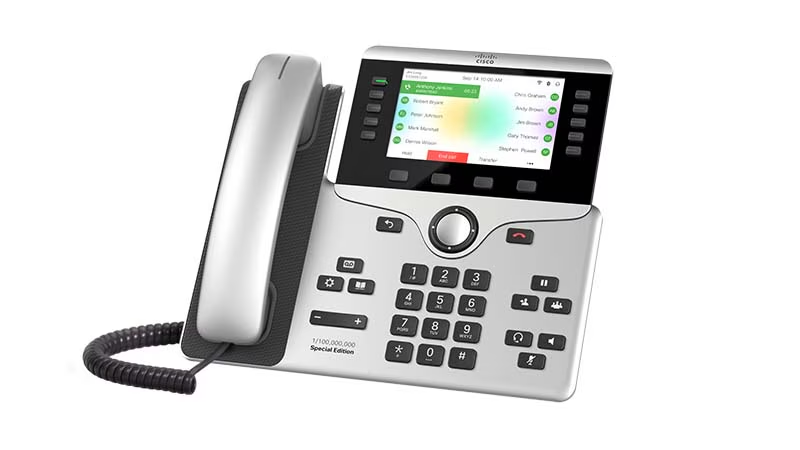
- Platform compatibility: Yealink phones are SIP-standard, but Teams-certified models require specific firmware. Confirm before buying that the model you want supports your platform.
- PoE on your switches: Most Yealink phones are PoE-capable. If your switches are not, factor in adapters or a PoE injector per phone.
- Provisioning at scale: For 10 or more phones, manual web-interface configuration per device is impractical. Yealink’s RPS (Redirect and Provisioning Service) automatically pushes configuration. Plan this before deployment, not after.
- Buy from an authorised source: Grey-market Yealink devices often lack regional firmware and carry no manufacturer’s warranty. As a trusted Yealink distributor in Dubai, Zoomline Network supplies only genuine stock backed by a full warranty.
Final Take
VoIP setup with Yealink hardware is simple when the groundwork is done properly. The platform choice comes first. Then the network. Then, the right device for each role. Follow the steps in order, confirm compatibility before purchasing, and source from an authorised Yealink distributor in Dubai. So the warranty and firmware support are in place from day one.
Zoomline Network is an authorised Yealink distributor with the full Yealink range in stock. We can advise on model selection, SIP compatibility, PoE requirements, and provisioning, and supply genuine Yealink products at competitive pricing. Get in touch with our team at (+971 55378 6444) (+971 4325 7866), or visit our website Zoomline Network.
- APC UPS
- Aruba
- Aten KVM
- CCTV Cameras
- Copper Cable
- Corning
- D-link
- D-link Router
- Eaton UPS
- Excel Cable
- Fiber Optic Patch Cord
- Fiber Optic Splitter
- Fortinet
- FTTH Cabinets
- Hp Switch
- IP PBX System
- Media Converter
- Molex
- Network Cabinet
- Nexans
- Others
- panduit
- Panduit Cable
- Power Distribution Unit
- Product News
- Schneider
- Server Cabinet
- Server Rack
- Splicing Machine
- Structured Cabling
- Technology
- Tp-link
- Tp-link Router
- Ubiquiti
- Ubiquiti Router
- Yealink
- Yeastar